Quote3D Widget
How to Sell Custom 3D Printing on WooCommerce with Instant Quotes
Let customers upload a model, see an instant price and add the part to the WooCommerce cart: setup, pricing, a server-verified cart and a production queue in WordPress.
Serdar Kaan · 6 min read · 0 views
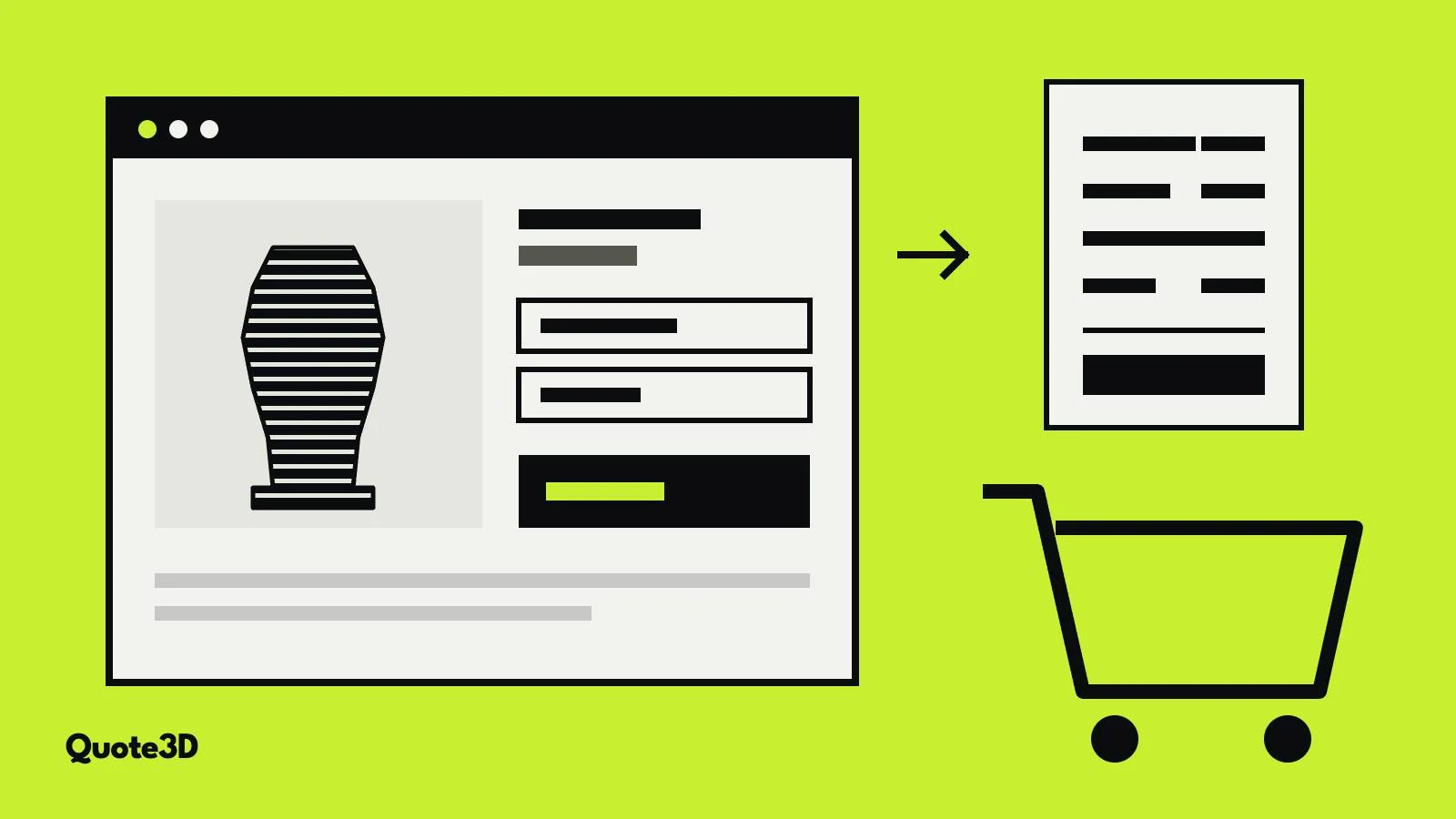
Selling ready-made products on WooCommerce is straightforward: a product, a price, a cart. Custom 3D printing breaks that model, because every customer brings a different file and the price depends on the geometry, the material and the quantity. Many shops end up with a contact form and a promise to reply with a quote, which turns an online shop back into an email inbox.
This guide shows how to sell custom prints in WooCommerce with an instant price: the customer uploads a model on a product page, sees the price calculated from your machines and rates, and adds the part to the normal WooCommerce cart. It uses the free Quote3D for WooCommerce plugin from the WordPress.org directory.
What the finished setup looks like
- The customer opens a product page with the Quote3D configurator and uploads an STL, OBJ, 3MF or STEP file.
- They choose technology, material, colour and quantity, and the price appears together with the print time.
- "Add to cart" puts one cart line in the WooCommerce cart, with the model thumbnail, material, colour and quote ID, at the quoted price.
- The customer pays through your usual WooCommerce checkout and payment gateways.
- The paid part appears in your production queue in WordPress with its print settings and a model download.
Before you start
- WordPress 5.8 or later with WooCommerce, and PHP 7.4 or later.
- A Quote3D account on a paid plan. The plugin uses two tokens: a widget token for the configurator and a server token for the back office.
- Your shop currency must match the currency of your Quote3D pricing.
Step 1: Set up your machines and prices in Quote3D
The plugin does not invent prices; it uses the printers, materials and rates in your Quote3D account. Start from the ready-made library of printer and material profiles and copy the ones you own into your account, then adjust them:
- Printers: build volume, speeds and an hourly machine rate.
- Materials and colours: price per kilogram, density and the colours you stock.
- Pricing settings: fixed fee per order, minimum price per technology, energy cost, waste factor, tax, volume discount tiers and post-processing fees.
Quote a few of your own past jobs on the dashboard and compare the result with what you charged. It is the quickest way to check that your rates are complete. Our article on what drives the cost of each 3D printing process explains which settings matter most for each technology.
Step 2: Install the plugin
In WordPress, go to Plugins › Add New, search for "Quote3D for WooCommerce", then install and activate it. Updates arrive through the normal WordPress update screen.
Step 3: Run the setup wizard
After activation the setup wizard opens. It asks for three things:
- Configurator language: the language your shoppers see in the configurator. Nine languages are available. The plugin's admin pages follow the language set in your WordPress profile.
- Tokens: paste the widget token and the server token from your Quote3D dashboard. The wizard checks both.
- Cart product: let the wizard create the product that quoted parts are added under, or choose an existing one.
Step 4: Put the configurator on a page
Turn on "Quote3D configurator" on a product, or place the [quote3d_widget] shortcode on any page. A dedicated "3D printing service" product page works well: it keeps the configurator where search engines and customers expect a product, and you can add your own text about lead times, materials and finishing around it.
The configurator's appearance comes from the Quote3D widget settings: theme, colours, fonts, which form fields are shown and which values are allowed. You can offer the simple form (print quality and strength), the advanced form with every print setting, or both.
Why the price cannot be changed in the browser
When a customer clicks "Add to cart", the browser sends only the quote ID. The plugin then reads the price, number of pieces and material from the Quote3D API on your server and adds one cart line at that price, with the quantity locked. Someone who edits the page or the request cannot change what they pay. This matters more than it sounds: any setup that trusts a price sent from the browser can be exploited.
Running production from WordPress
With the server token connected, the plugin adds a Quote3D menu to WordPress:
- Overview: quotes, carts, orders and revenue for any period, plus your plan usage.
- Production queue: paid parts with their print settings and model downloads, and a "mark printed" action. The order is completed when every part is printed.
- Catalogue: printers, materials, colours, prices and colour stock. Paid orders take colours out of stock and cancelled orders put unprinted parts back.
- Reports with CSV export.
Carts and orders are stored in your shop's own database. Model files stay on Quote3D, and the plugin can delete an order's files seven days after the order is completed.
Tips for a shop that converts
- Start with what you print well. Offer only the technologies and materials you can deliver reliably; you can add more later.
- Set a minimum price per technology. It protects tiny parts from quotes that do not cover handling, without changing larger quotes.
- Use the simple form for consumers. Most buyers understand "Standard quality, Strong part" better than layer height and wall count.
- Explain finishing and lead times next to the configurator. The price answers "how much"; your text should answer "when" and "what will it look like".
- Test with real files: a large model, a STEP assembly and a part that does not fit your machine, so you see every message a customer can see.
Frequently asked questions
Is the plugin free?
The plugin is free on WordPress.org. Quotes are calculated by Quote3D, and connecting the plugin requires a paid Quote3D plan. See the pricing page for current plans.
Which file formats and technologies are supported?
STL, OBJ, 3MF and STEP (.step/.stp) files, priced for FDM, SLA, SLS, SLM and MJF with your own printers, materials and prices.
Does it work with multi-currency plugins?
Yes. The quote is compared with the store's base currency, which must match your Quote3D pricing currency.
Can I use it without WooCommerce?
The plugin needs WooCommerce. For other platforms there are integrations for PrestaShop, OpenCart, Magento, Wix and Shopify, and any site can embed the Quote3D widget.
Get started
Read the WooCommerce integration page for screenshots and requirements, create your Quote3D account, and install the plugin from WordPress.org.